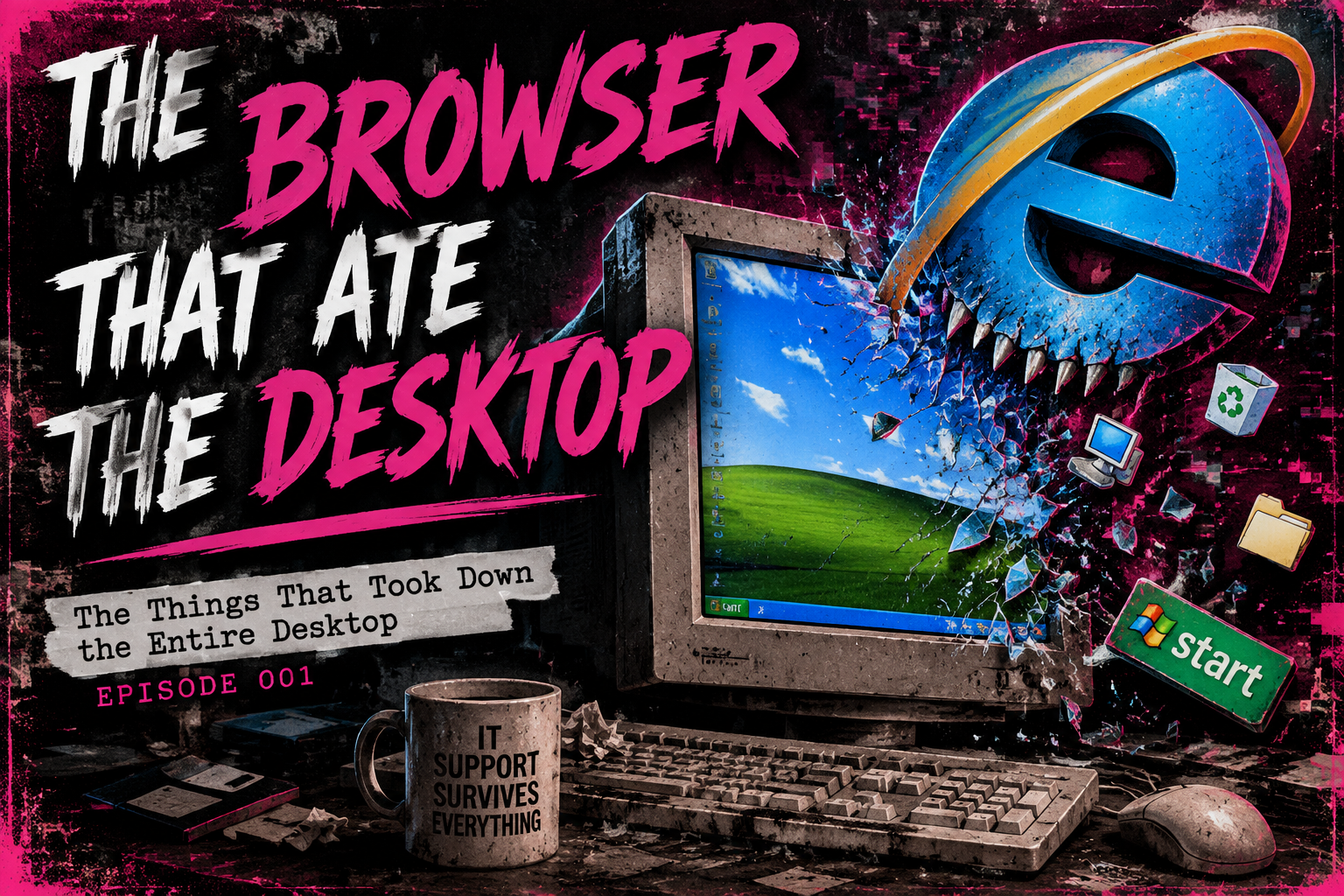
The Browser That Ate the Desktop
The Things That Took Down the Entire Desktop | Episode 001
There are computer problems.
There are interesting computer problems.
And then there are the help desk calls where someone tells you their entire Windows desktop has disappeared.
Not one missing icon. Not a shortcut out of place.
The whole thing. Gone.
Picture the early 2000s.
I’m working help desk for an ISP, and every so often, a call comes in that sends you digging through your mental database of things Windows has done to ruin a perfectly ordinary afternoon.
“My entire desktop is gone!”
No taskbar. No Start button. No familiar icons.
The computer is running. The user is understandably concerned. And somewhere in the back of your mind, a little light comes on.
I’ve fixed this problem more times than I could count.
Welcome to the era when Internet Explorer and the Windows shell could make for some particularly memorable troubleshooting sessions.
Two Executables. Two Very Different Jobs.
Here’s where knowing your systems mattered.
iexplore.exe was Internet Explorer, the browser.
explorer.exe was Windows Explorer, which also provided the desktop and taskbar shell on the Windows versions we’re talking about.
Similar names. Very different responsibilities.
Because apparently naming two completely different components almost the same thing was a perfectly reasonable way to spend everyone’s afternoon.
And this wasn’t just some bizarre help desk legend.
Microsoft’s historical Knowledge Base article Q249191, Blank desktop or illegal operations error message after you install Internet Explorer, documents cases where the Windows Explorer shell failed to load, leaving users with a blank desktop. It also describes Explorer.exe invalid-page-fault errors following Internet Explorer installation.
The documented causes included damaged or missing shared components and other specific system conditions. It wasn’t a universal case of Internet Explorer crashing and taking the desktop with it, but it confirms that these were real problems in the legacy Windows environment.
The important distinction was understanding what had actually failed.
A missing desktop didn’t automatically mean the user’s files were gone, Windows was beyond repair, or the computer needed to be replaced.
It meant something had failed, and your job was to figure out what.
The Fix Wasn’t Always as Dramatic as the Symptoms
Sometimes, the immediate fix was to open Task Manager and start explorer.exe again.
Depending on the Windows version, you could use Ctrl + Alt + Delete to access Task Manager, open the new-task dialog, and run explorer.exe.
If the shell process was the problem and the rest of the session was healthy, the desktop and taskbar could return.
No reinstall. No replacement hardware. No lengthy discussion about whether the computer had reached the end of its useful life.
Just the right process, restarted for the right reason.
Of course, restarting Explorer wasn’t a magic spell that cured every Windows problem. If the underlying issue remained, the symptoms could return. You still had to diagnose the problem rather than throw the same fix at every machine and hope one of you eventually won.
But when the shell was the culprit, knowing what to restart could save a whole lot of unnecessary troubleshooting.
And that is the difference between knowing a trick and understanding why it works.
One is a shortcut. The other is experience.
The Real Lesson Wasn’t the Keyboard Shortcut
The shortcut was the easy part.
The hard part was figuring out what had actually failed.
A missing desktop didn’t automatically mean the files were gone. A browser crash didn’t automatically mean Windows itself was broken. And two executable names that looked almost identical didn’t mean the programs had the same job.
You had to understand how the application, the Windows shell, and the user interface interacted. You had to ask questions, recognize symptoms, and narrow down the possibilities.
After enough help desk calls, you stop treating every symptom like a brand-new species of disaster.
You recognize the pattern. You check your assumptions. You work the problem.
The trick isn’t knowing every answer. It’s knowing how to find the right one without making the user regret calling you.
That’s troubleshooting.
Not clicking everything in sight and hoping the computer eventually mistakes your desperation for a solution.
If this sounds familiar, I’ve written more about why systematic troubleshooting still matters in Troubleshooting Is Becoming a Lost Art in Tech.
Thirty Years in IT. The Fundamentals Haven’t Changed.
Today’s systems look different. We have cloud platforms, centralized management, better logging, and a whole new generation of ways for applications to ruin someone’s afternoon.
The tools have evolved. The interfaces have changed. The error messages have found new and exciting ways to be unhelpful.
But the fundamentals haven’t disappeared.
Understand the symptoms. Identify the failing component. Investigate before replacing things. Fix the cause instead of treating every symptom like a five-alarm infrastructure emergency.
You don’t need to know every possible failure by heart. You need to know how to investigate, test what you think you know, and choose the next step based on evidence.
That’s what experience gives you. Not a magical ability to prevent computers from doing ridiculous things, unfortunately.
If it did, the IT industry would be a much quieter place.
And please, for the love of all things technical, know which executable you’re restarting.
Further Reading
- Microsoft Knowledge Base Q249191: Blank desktop or illegal operations error message after you install Internet Explorer — historical Microsoft support documentation preserved in an unofficial archive.
Promptly Melissa 💻✨
Technology made human. Thirty years in IT. Still annoyed.