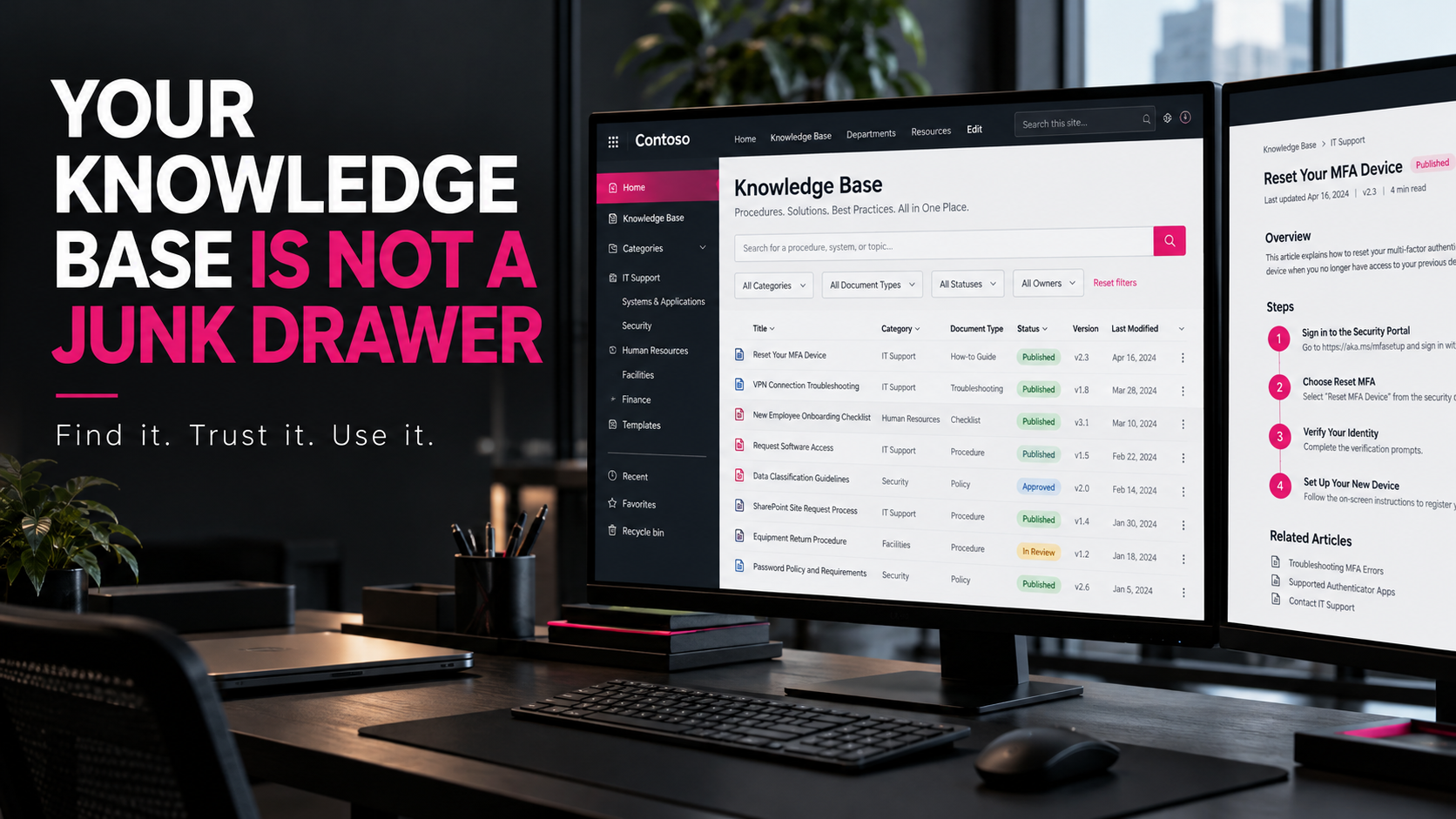
Your Knowledge Base Is Not a Junk Drawer
Somewhere in Your Organization, a Procedure Is Lying to Someone
The document title says New Employee Onboarding Procedure.
The screenshots show an interface that disappeared two migrations ago. The instructions reference a server that was decommissioned years ago. The person who wrote it left the company, and nobody remembers why step seven requires a manual approval.
The footer says Last Updated: Yesterday.
Yesterday in which geological era is anyone’s guess.
Welcome to enterprise documentation, where information can remain technically available long after it stops being operationally useful.
I’ve spent roughly 30 years in IT, including building SharePoint intranets, creating standard operating procedure repositories, developing knowledge bases, and documenting the systems people depend on to do their jobs.
Here’s something experience teaches you pretty quickly: creating documentation is relatively easy.
Creating documentation people can find, understand, trust, and maintain is a different discipline.
Moving 400 Word documents into SharePoint doesn’t magically turn them into a knowledge management system. It just gives the chaos a new address.
The Real Problem Isn’t Missing Documents
When someone can’t find a procedure, the immediate response is often to create another one.
Sometimes that’s the right answer. Often, the organization already has the information. It’s simply buried, poorly labeled, duplicated, outdated, or inaccessible to the person who needs it.
These are different problems, and they require different solutions.
- Missing information: The procedure doesn’t exist, or it doesn’t address the actual task.
- Poor discoverability: The information exists, but its title, metadata, organization, or search experience makes it difficult to find.
- Conflicting guidance: Multiple procedures describe different ways to perform the same task, with no clear indication of which is authoritative.
- Stale information: The document no longer reflects the system, permissions, or process in production.
- Ownership failure: Nobody is accountable for validating the content or deciding when it should be retired.
Notice what’s absent from that list: a shortage of folders.
Before restructuring a document library, determine which problem you’re trying to solve. Otherwise, you risk spending a week reorganizing content that still won’t answer the user’s question.
Design the Knowledge Base Around the Work
People generally don’t approach an IT knowledge base thinking about your departmental reporting structure.
They want to reset an account, troubleshoot a VPN connection, provision a new employee, restore a file, or investigate an application error.
Organize the experience around recognizable tasks, systems, and problems. Use categories that make sense to the people performing the work, not just the administrators who designed the repository.
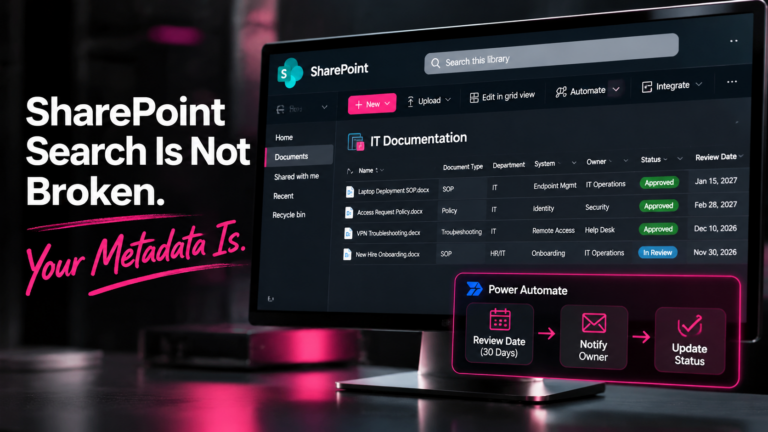
For a SharePoint Online documentation library, start with a small set of useful metadata fields:
- Document title: A descriptive name that reflects the task or problem.
- Document type: SOP, troubleshooting guide, reference, policy, or another meaningful classification.
- System or service: The application, platform, or infrastructure component covered.
- Content owner: The person or role accountable for accuracy and review.
- Status: Draft, under review, approved, or retired, as appropriate to your governance model.
- Last verified: The date the content was actually checked, rather than merely edited.
- Next review date: A target for the next scheduled validation, when applicable.
You don’t need every field on every library. The point is to make the information useful enough to support filtering, ownership, lifecycle management, and retrieval without turning document creation into an administrative obstacle course.
Use metadata where it provides real value. Use folders when they make navigation clearer. Neither should exist simply because somebody likes having more of them.
And remember that a SharePoint library’s metadata is only useful when people populate it consistently and the views and search experience make use of it.
Microsoft explains how SharePoint search properties are managed and mapped to searchable content in its SharePoint search schema documentation.
The Five-Part Knowledge Base Health Check
Here’s a practical way to evaluate a knowledge base before launching another migration or redesign project.
Score each area from zero to two:
- 0: Missing or unreliable.
- 1: Partially implemented or inconsistently maintained.
- 2: Defined, implemented, and demonstrably working.
| Control | What to verify |
|---|---|
| Findability | Can users locate the correct procedure using their own words for the task? |
| Accuracy | Does the procedure match the current system and process? |
| Ownership | Is a person or role accountable for maintaining it? |
| Lifecycle | Are review, approval, replacement, and retirement handled consistently? |
| Operational usefulness | Can the intended audience complete the task using the instructions? |
Maximum score: 10 points.
Use the results to prioritize remediation, not to declare the environment compliant or secure. This is a practical health check, not a formal audit standard.
A low findability score suggests testing titles, terminology, metadata, navigation, and search behavior. A low accuracy score calls for content validation. A low ownership score means responsibility needs to be assigned before another review cycle can succeed.
The most important step is to test actual procedures with actual users. A beautifully completed spreadsheet doesn’t prove that a technician can find the right instructions during an outage.
Give Every Important Document an Owner
Every critical procedure should have someone accountable for keeping it accurate.
That doesn’t necessarily mean one person must write, approve, and maintain every document. Authors, technical reviewers, approvers, and content owners can be different people, depending on the organization’s size and risk requirements.
What matters is that responsibility is explicit.
Microsoft’s SharePoint governance overview explains how governance establishes the roles, responsibilities, policies, and processes used to manage a SharePoint environment.
A useful ownership model answers four questions:
- Who knows whether the procedure still reflects reality?
- Who is responsible for reviewing changes?
- Who can approve the procedure for operational use?
- Who decides when the document should be replaced or retired?
For a small team, one named owner may cover several of these responsibilities. In a larger environment, a technical owner and an approver may be separate roles.
Avoid assigning ownership to a generic department mailbox if nobody is actually accountable for acting on it.
And don’t confuse a document’s modified date with its verification date. Opening a file, correcting a typo, or changing its formatting doesn’t establish that the technical instructions are still correct.
Build a Review Process That Responds to Change
A fixed annual review cycle can be useful, but it isn’t sufficient for every document.
A stable reference guide and a procedure for granting privileged access do not necessarily carry the same operational risk. They shouldn’t automatically receive identical review treatment.
Use a combination of scheduled reviews and change-triggered reviews.
A scheduled review prompts the owner to validate the content at an appropriate interval. A change-triggered review occurs when something relevant changes, such as:
- An application interface or workflow is redesigned.
- A server, service, or integration is replaced.
- Permissions or security requirements change.
- An incident reveals that a procedure is incomplete or incorrect.
- A workaround becomes unnecessary or a temporary fix becomes a supported process.
For high-impact procedures, a relevant system change should trigger validation rather than waiting for the next calendar reminder.
When a document is reviewed, record the outcome. The content may be confirmed as accurate, revised, replaced, or retired. A review doesn’t always require editing the document, but it should produce an accountable decision.
This is also where automation can help. SharePoint and Microsoft 365 workflows can support review notifications, reminders, and approval processes. But an automated reminder is not a technical review, and a workflow marked complete doesn’t prove that anyone verified the instructions.
Automation can enforce a process. It cannot supply the missing judgment.
Version History Is Not a Substitute for Governance
SharePoint Online offers useful controls for managing document changes, including version history and, where appropriate, content approval.
Version history helps users inspect or restore earlier versions. Approval controls can help organizations manage which submitted content becomes available to particular audiences, depending on the library configuration.
These capabilities solve specific problems. They do not automatically establish which of several competing procedures people should follow.
Consider an access-provisioning guide that has been replaced by a new process. The old file may still have a perfectly healthy version history. It may also still be discoverable through a bookmarked link or an old Teams conversation.
The technical history of the file doesn’t tell a reader whether its instructions remain approved for use.
Establish a clear lifecycle for operational documentation:
Draft → Technical review → Approval, where required → Publication → Maintenance → Replacement or retirement
Not every reference document needs a formal approval workflow. Match the level of control to the risk, regulatory obligations, and operational consequences of an incorrect procedure.
When content is retired, make its status unmistakable and direct readers to the replacement when one exists. Preserve historical records when business or legal requirements call for them, but don’t leave obsolete instructions looking like valid alternatives.
Microsoft’s documentation explains how to configure SharePoint library versioning and content approval:
- Enable and configure versioning for a SharePoint library
- Require approval of items in a SharePoint list or library
Use these features deliberately. More controls aren’t automatically better if the resulting process becomes so cumbersome that people work around it.
Write Procedures for the Person Performing the Task
A procedure shouldn’t be a memoir of everything its author knows about a system.
It should help the intended reader complete a task safely and consistently.
For an operational SOP, include the elements that matter to the task:
- Purpose and scope: What the procedure accomplishes and when it applies.
- Prerequisites: Required access, tools, approvals, and dependencies.
- Procedure: Steps in the order they should be performed.
- Decision points: Conditions that change the next action.
- Validation: How the reader confirms the task succeeded.
- Recovery or escalation: What to do when the expected result doesn’t occur.
- Ownership and maintenance: Who maintains the content and how changes are handled.
Not every document requires every element. A quick reference card shouldn’t become a 20-page manual. A production recovery procedure, however, may need considerably more detail than a simple password-reset guide.
Be explicit about environments. If a step affects production data, changes permissions, or carries a risk of service interruption, identify that risk before the action is performed.
Screenshots can help, but they need maintenance too. A screenshot that contradicts the written instructions creates uncertainty rather than clarity.
The test is straightforward: can a suitably trained person in the intended audience complete the task without having to guess at a critical step?
If not, the procedure needs more work.
Test the Knowledge Base, Not Just the Documents
You can inspect metadata, review dates, and count approved documents all day. None of those measurements alone tells you whether the knowledge base is helping people solve problems.
Run small, realistic usability tests.
Give a technician a common task and ask them to locate the correct procedure without revealing its title or folder. Observe the search terms they use, which results they open, and where they get stuck.
Then ask them to perform a task using the procedure, or walk through it in a controlled test environment where appropriate.
Record what happens:
- Did they find the intended document?
- Were multiple versions competing for attention?
- Could they determine whether the instructions were current?
- Did the steps produce the expected result?
- Was escalation guidance available when the task failed?
Use these findings alongside practical operational signals such as repeated support questions, recurring incidents, unsuccessful searches where measurable, and feedback from technicians.
Be careful with simplistic success metrics. A drop in document views could mean that users are finding answers more efficiently, or it could mean they have stopped using the knowledge base. Interpret the data in context.
The objective isn’t to maximize clicks or document counts. It’s to make reliable information easier to use.
The Bottom Line: Information Needs an Operational Lifecycle
A knowledge base is not finished when the migration completes, the homepage looks attractive, or the last document has been uploaded.
It works when people can find the right information, understand its intended use, trust its accuracy, and follow it successfully.
That requires information architecture, ownership, review, appropriate controls, and ongoing validation. SharePoint can provide much of the technical foundation, but the operating model has to be designed and maintained.
Start with your most frequently used or highest-risk procedures. Assess them using the five-part health check. Fix the most consequential gaps first. Then expand the approach across the repository.
You don’t have to rebuild everything in one weekend.
You do have to stop treating documentation as a pile of files that will somehow maintain itself.
Because the next time a technician needs to restore a service, provision an account, or resolve an incident, the answer shouldn’t depend on remembering who wrote a document three years ago.
And it definitely shouldn’t depend on finding the one person who remembers where the real instructions are.
Your knowledge base should preserve what your organization knows, make that knowledge usable, and keep it trustworthy as systems change.
Otherwise, you’ve just built a very organized junk drawer.
And somewhere inside it, FINAL_v2_ACTUAL_FINAL_USE_THIS_ONE.docx is still waiting for its next victim.
Further Reading
For readers who want to explore the Microsoft 365 features discussed in this article:
- SharePoint governance overview – Microsoft Learn
- Manage the search schema in SharePoint – Microsoft Learn
- Version history overview – Microsoft Learn
- Approve or reject items or files – Microsoft Support
Editorial note: The five-part Knowledge Base Health Check in this article is a practical framework developed for this article. It is not an official Microsoft assessment or certification standard.
Promptly Melissa 💻✨
Technology made human. Thirty years in IT. Still annoyed.



One Comment