SharePoint Search Is Not Broken. Your Metadata Is.
SharePoint search is not broken.
Your documents may simply be hiding under names like:
Final.docxFinal2.docxFinal_Approved.docxFinal_Approved_REALLY.docxFinal_Approved_REALLY_USE_THIS_ONE.docx
At that point, even a good search engine is being asked to perform digital archaeology.
Search can only work with the information available in the library. If files have unclear names, inconsistent categories, no owners, and no review process, the results will reflect that disorder.
That is an information architecture problem.
A filename is not a filing system
A filename helps identify a document. It should not carry the entire burden of organizing one.
A document called Laptop SOP tells us very little.
A properly designed record should also have useful metadata.
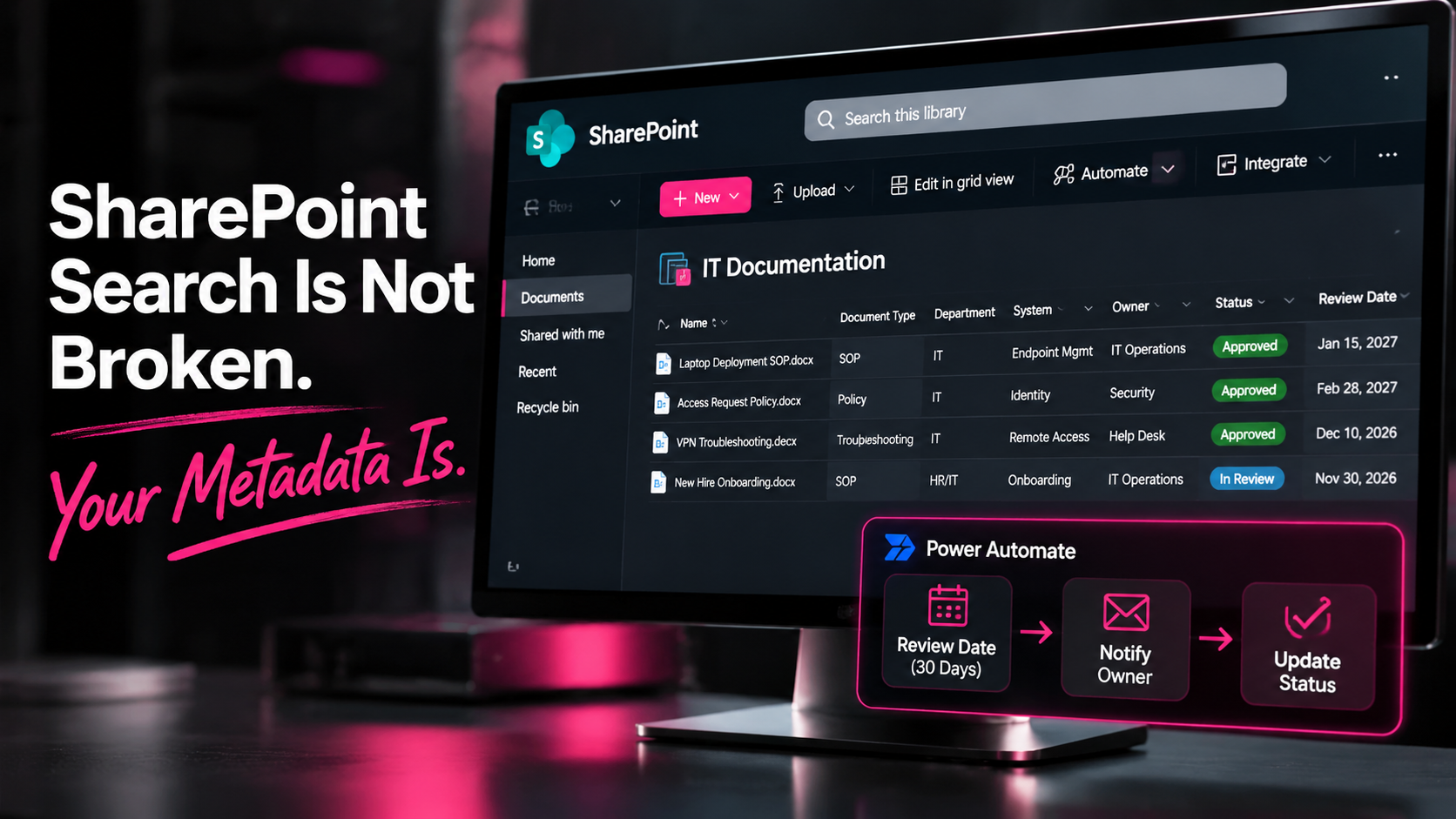
| Metadata column | Example value |
|---|---|
| Document type | SOP |
| Department | IT |
| System | Endpoint Management |
| Audience | Help Desk |
| Owner | IT Operations |
| Status | Approved |
| Review date | January 2027 |
That information gives people multiple ways to find the correct document. They can filter by system, department, audience, status, or owner instead of remembering which version had the word “final” in the filename.
Microsoft’s guidance on planning SharePoint information architecture explains how navigation, site structure, content organization, and metadata work together.
The goal is not to create 40 columns nobody fills out.
The goal is to create the smallest useful structure.
Start with how people search
Before creating metadata, ask what users actually need to know.
Are they looking for:
- A system?
- A department?
- A process?
- A document type?
- An audience?
- An approval status?
- An owner?
- A review date?
Build columns around those questions.
If people search for “new-hire onboarding,” a process or department column may help more than forcing them to remember the exact filename created three years ago by someone who has since changed jobs twice.
Useful metadata should answer the questions people already ask.
Give different documents different identities
A policy, SOP, troubleshooting article, and form may live in the same library, but they do different jobs.
That is where SharePoint content types can help.
A practical document library might define:
- SOP: Steps, system, owner, review date.
- Policy: Approval authority, effective date, revision date.
- Troubleshooting article: Symptom, cause, resolution, escalation path.
- Form: Audience, submission process, retention requirement.
Content types give documents a consistent structure and make future automation more reliable.
A review reminder for an SOP should not behave exactly like an approval process for a policy.
Otherwise, the library becomes a very expensive filing cabinet with opinions.
Give every document an owner
If nobody owns a document, nobody is responsible for checking whether it is still accurate.
That is how a 2019 procedure survives three system changes, two reorganizations, and one Microsoft interface redesign.
Every controlled document should have:
- An owner.
- A status.
- A review date.
- A document type.
- An approval or retirement process.
- A clear replacement path.
A document does not become trustworthy simply because it is stored in SharePoint.
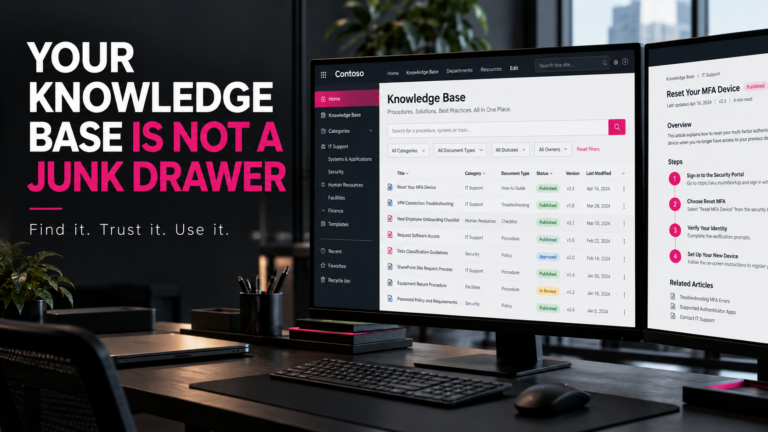
Building a useful documentation system also requires a knowledge base with structure, accountability, and clear ownership. We explored that in Your Knowledge Base Is Not a Junk Drawer.
SharePoint provides the platform. The operating process determines whether the content remains useful.
Make review dates trigger action
A review date should answer more than “when was this entered?”
It should tell you:
- Who reviews the document.
- What happens if the review is missed.
- Whether the document becomes expired.
- Whether the previous version is retained.
- Who approves the replacement.
A simple Power Automate workflow can send the owner a reminder before the review date, create a review task, or notify a knowledge-management owner when the date passes.
But let’s move beyond saying automation is possible. Let’s build a practical example.
Build a 30-Day Document Review Reminder with Power Automate
Imagine a SharePoint documentation library containing hundreds of procedures.
Each procedure has an owner and a scheduled review date. The problem is that nobody should have to manually check hundreds of documents every morning to find out which ones need attention.
This is a good use case for Power Automate.
We’ll build a scheduled cloud flow that checks the library daily and sends an email to the responsible document owner 30 days before a review is due.
Step 1: Prepare the SharePoint library
Before building the flow, make sure your document library contains these columns:
| Column | SharePoint type | Purpose |
|---|---|---|
| Document Owner | Person | Identifies the responsible employee |
| Review Date | Date and Time | Establishes when the document needs review |
| Reminder Sent | Yes/No | Prevents duplicate notifications |
For this example:
- Configure Document Owner to allow a single person.
- Use a date-only Review Date.
- Set Reminder Sent to No by default.
The reminder tracking column is important. Without it, a scheduled flow could send the same notification every day once a document enters the 30-day window.
Step 2: Create the scheduled flow
Open Power Automate.
- Select Create.
- Choose Scheduled cloud flow.
- Name the flow
SharePoint Document Review Reminder. - Set the recurrence to once per day.
- Configure the start time and appropriate business time zone.
A scheduled flow is useful here because the process needs to check the entire library regularly, not just react when somebody edits a document.
Microsoft’s instructions for running a cloud flow on a schedule explain how to configure the recurrence and time zone.
Step 3: Retrieve the documents
Add the SharePoint action:
Get files (properties only)
Configure:
- Site Address: Your SharePoint site.
- Library Name: Your documentation library.
This action retrieves files and their library properties, including the metadata columns we created.
For larger libraries, review the action’s pagination settings and configure an appropriate threshold. Do not assume the default result limit will cover every document.
Microsoft explains the differences and configuration options for Get items and Get files in Power Automate.
Step 4: Filter for documents due in 30 days
Add a Filter array action.
For the From field, select the value output from Get files (properties only).
The flow needs to identify documents meeting three conditions:
- A review date exists.
- The review date is 30 days from today.
- Reminder Sent is No.
For a date-only column, an expression-based filter can look like this:
@and(
  not(empty(item()?['ReviewDate'])),
  equals(
    formatDateTime(item()?['ReviewDate'],'yyyy-MM-dd'),
    formatDateTime(
      addDays(utcNow(),30),
      'yyyy-MM-dd'
    )
  ),
  equals(item()?['ReminderSent'],false)
)
Replace ReviewDate and ReminderSent with the actual internal column names in your SharePoint library.
A note about time zones: Power Automate uses UTC for utcNow(). If your organization defines review dates according to a local business calendar, calculate the target date in that business time zone before comparing it with the SharePoint date. This avoids reminders shifting by a day around midnight.
Microsoft documents the date and time functions and expression functions used in this example.
Step 5: Notify the document owner
Add an Apply to each action using the output of Filter array.
Inside the loop, add:
Send an email (V2)
Configure the email using dynamic content from the SharePoint file.
- To: Document Owner Email.
- Subject: Document Review Due in 30 Days.
- Body: Include the document title, review date, and a direct link to the document.
For a single-person SharePoint Person column, select the owner’s Email property from the dynamic content available for that column.
A useful notification might read:
“Your document is approaching its scheduled review date. Please verify that the procedure is still accurate, update any outdated instructions, and submit revisions through the established approval process.”
The point is to make the notification actionable. The recipient should not have to hunt through SharePoint to figure out which document needs attention.
Step 6: Record that the reminder was sent
After the email action succeeds, add the SharePoint action:
Update file properties
Set the Reminder Sent column to Yes.
Use the document’s item ID from the current Apply to each record.
This prevents the scheduled flow from sending the same reminder repeatedly.
When a new review date is assigned, reset Reminder Sent to No so the document can participate in the next review cycle.
If the email fails, do not mark the reminder as sent. The flow should retain the failure information so the notification can be investigated.
For a more advanced implementation, add error handling, an administrative notification, and a separate reminder log. A simple Yes/No column is appropriate for this introductory example, but more complex governance processes may require a richer tracking model.
Step 7: Test before deploying
Do not immediately turn a new flow loose on a production library.
Create a test document whose review date is exactly 30 days away.
Verify that:
- The flow retrieves the correct document.
- The filter identifies the document.
- The email reaches the correct owner.
- The document link opens the correct file.
- Reminder Sent changes to Yes.
- Subsequent daily runs do not send duplicate reminders.
Also test documents with missing owners and missing review dates. Those records should be identified for correction rather than silently treated as successfully processed.
The result is a simple document-governance mechanism that connects SharePoint metadata to an actual operational process.
The review date is no longer just another column in a library. It becomes an event that triggers accountability.
And that is the difference between storing documentation and managing it.
Use views that match the work
One giant library view filled with hundreds of files makes people scroll until they lose the will to live.
Create views such as:
- Approved SOPs.
- Drafts awaiting approval.
- Documents due for review.
- Procedures by system.
- Knowledge articles by audience.
- Retired documents.
Views allow different teams to work with the same library without creating duplicate copies.
That matters because duplicate copies are how two departments end up following two different versions of the same procedure while both insist theirs is correct.
Do not confuse search with governance
Search helps people find information.
It does not decide whether the information is accurate, approved, current, or owned.
That requires governance.
A useful SharePoint documentation process should define:
- Who creates the document.
- Who reviews it.
- Who approves it.
- Where the approved version lives.
- How changes are recorded.
- When the document is reviewed.
- What happens when it is retired.
Version history can show how a document changed, but it cannot repair a library where nobody knows which document is authoritative.
That decision has to be made by the people responsible for the process.
Clean inputs produce better search results
If the library contains:
- Unclear filenames.
- Duplicate documents.
- Missing owners.
- Inconsistent categories.
- Expired procedures.
- Unmanaged sharing links.
Then search results will reflect that disorder.
A practical cleanup process looks like this:
- Define the document types.
- Create useful metadata columns.
- Apply naming standards.
- Assign owners.
- Add review dates.
- Create working views.
- Retire duplicates.
- Teach people how to filter.
- Review the structure periodically.
Nobody puts “renamed 600 documents and assigned owners” on a movie poster.
But when someone finds the correct procedure in ten seconds instead of opening twelve files called Final, the work has paid for itself.
The real test
A healthy SharePoint library should let the next person answer:
- What is this document?
- Can I trust it?
- Who owns it?
- Who should use it?
- When was it reviewed?
- What replaced it?
- Where is the approved version?
If answering those questions requires calling the person who built the site, the library is storing documents.
It is not managing knowledge.
SharePoint search is reporting what the library knows.
Give it useful metadata, clear ownership, meaningful views, and content that has been reviewed.
Then search starts acting less like a scavenger hunt and more like a knowledge-management system.
Further Reading
- Plan your SharePoint information architecture — Microsoft Learn.
- Get items and Get files in Power Automate — Microsoft Learn.
- SharePoint connector reference — Microsoft Learn.
- Run a cloud flow on a schedule — Microsoft Learn.
- Power Automate date and time functions — Microsoft Learn.
- Power Automate expression cookbook — Microsoft Learn.
Promptly Melissa 💻✨
Technology made human. Thirty years in IT. Still annoyed.