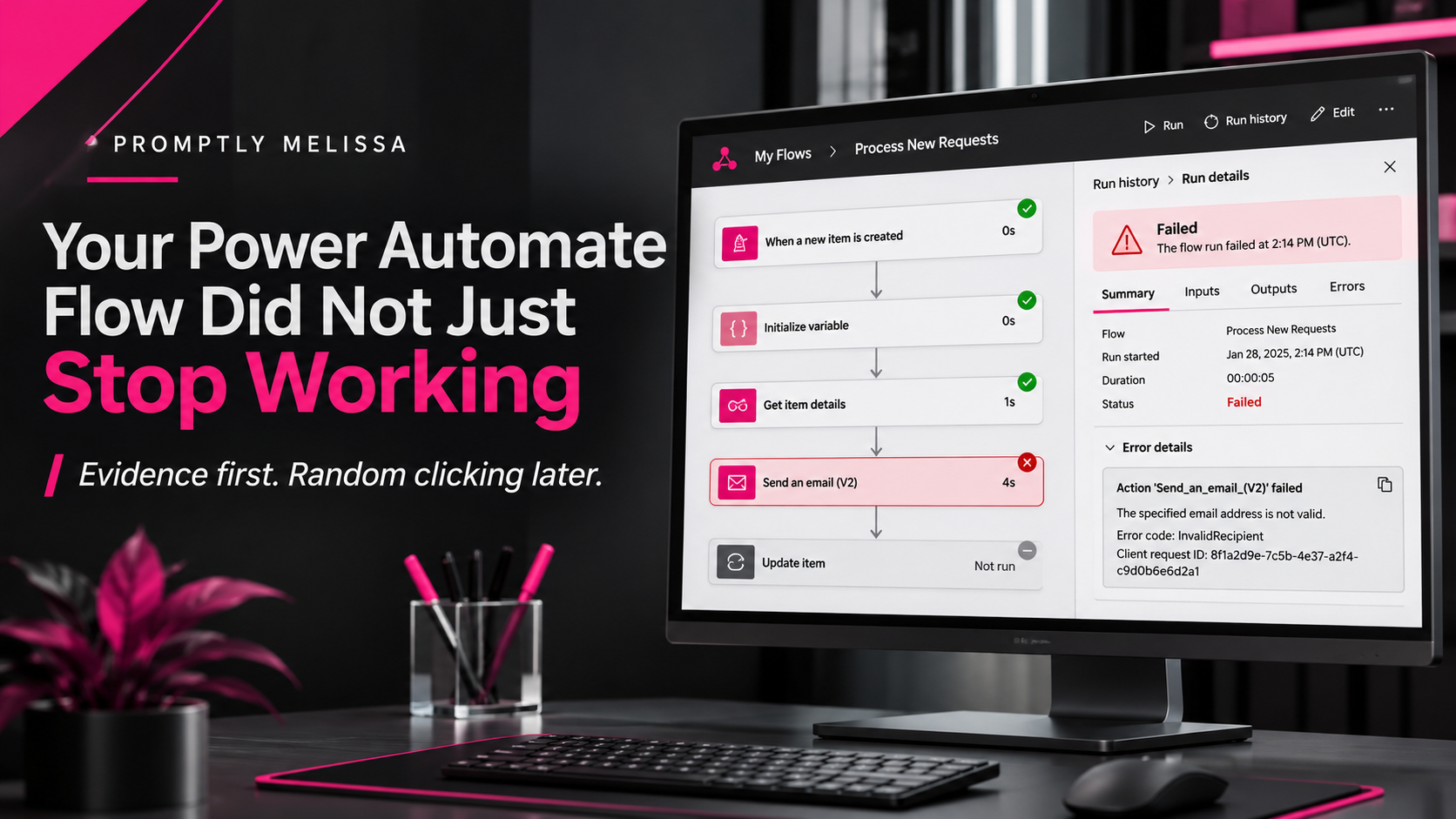
Your Power Automate Flow Did Not Just Stop Working
Somewhere between the perfectly functioning workflow you built last Tuesday and the notification that never arrived this morning, something happened. Let’s find out what.
There are few things more entertaining in IT than an automated process that has been working perfectly for months suddenly deciding it no longer recognizes the concept of employment.
You built the flow. You tested it. It worked. You documented it (hopefully). You went about your business, confident that Microsoft Power Automate was handling the repetitive task you specifically told it to handle.
Then someone asks why the approval notification never arrived.
You open Power Automate. The flow looks fine. The last successful run was three days ago. You refresh the browser. Nothing.
You refresh it again, with slightly more emotional intensity.
Still nothing.
Before you start rebuilding the entire workflow or questioning your career choices, take a breath. A failed flow usually leaves evidence. The trick is knowing where to look and how to interpret what you’re seeing.
Good troubleshooting starts with evidence, not assumptions. It’s the same principle behind why experienced IT professionals don’t stop at the first answer.
Power Automate troubleshooting isn’t about randomly changing settings until something works. It’s about isolating the failure, examining the evidence, and identifying the actual cause.
Let’s approach it like IT professionals.
First, determine what actually failed
Not every Power Automate problem is the same. A flow that never starts has a different problem from a flow that starts successfully and fails halfway through.
Before changing anything, establish which of these three situations you’re dealing with:
1. The flow never ran.
There are no new entries in the run history when you expected an event to trigger it.
Start with the trigger, flow status, schedule, and trigger conditions.
2. The flow ran but failed.
You can see the run in the history, but one or more actions failed.
Investigate the failed action, its inputs and outputs, connection status, permissions, and error message.
3. The flow completed successfully but produced the wrong result.
Everything is green, but the wrong record was updated, the notification contained incorrect information, or the expected action never happened.
This is a logic and data investigation. Examine conditions, expressions, dynamic content, and the actual values passed between actions.
These distinctions matter. Troubleshooting the wrong layer wastes time and can introduce additional problems.
1. Start with run history. Not the designer.
Your first stop should be the flow’s run history.
Open the flow in Power Automate and inspect its recent executions. Find the last successful run and compare it with the first failed run.
Look for:
- Failed actions.
- Skipped actions.
- Cancelled executions.
- Unexpectedly long-running actions.
- Changes in execution frequency.
- Missing runs when an event should have occurred.
Open an individual run and expand the actions to inspect their inputs, outputs, status, and error details.
Don’t just look at the red error indicator. Read the actual message.
For example, a SharePoint action might fail because a list was renamed, a connection expired, or the account no longer has permission to access the site.
Those are three different problems requiring three different solutions.
Sometimes the smallest detail points to the actual problem. We explored that idea in Incident #0001: The Doorstop Ethernet Cable.
Microsoft provides additional guidance in its Troubleshoot cloud flow errors documentation.
A note about retention: Power Automate cloud flow run history is retained for 28 days by default. For solution-aware cloud flows using Dataverse run history, administrators can configure retention settings. If you’re investigating an older incident, don’t assume historical execution details will still be available. Consider implementing separate logging for workflows that require longer-term audit records.
2. When nothing runs, investigate the trigger
If the run history contains no new executions, don’t start tearing apart the actions inside the flow.
The flow might never be reaching them.
Triggers are the entry point for automated workflows. They determine when a flow starts, and problems at this level can prevent the entire process from executing.
Check these items:
Is the flow turned on?
It sounds obvious, but check the flow’s actual status. A flow can be turned off manually, or its execution can be suspended because of licensing requirements, organizational policies, or other configuration issues. Check the flow’s status and Flow Checker messages rather than assuming the trigger itself is broken.
Is the correct environment selected?
Power Platform environments separate resources. Make sure you’re investigating the flow in the environment where it actually exists.
Did the triggering event occur?
For a SharePoint flow using “When an item is created,” verify that an item was actually created in the configured list.
For a scheduled flow, verify the recurrence, start date, and time zone.
Are trigger conditions filtering out the event?
This is an easy one to overlook.
Trigger conditions let you control whether an event should initiate a flow. However, an incorrectly written expression can prevent legitimate events from triggering anything.
For example, suppose a flow should run only when a SharePoint item’s Status field changes to Approved.
If the trigger condition references the wrong field or compares against an unexpected value, the event might be ignored.
Remember that trigger conditions are evaluated before the flow starts. If the condition isn’t satisfied, you won’t get a normal flow execution containing your actions.
Microsoft explains how to configure these expressions in Customize your triggers with conditions.
Understand polling versus webhook triggers.
Not every trigger operates in real time.
Polling triggers periodically check for new events. Webhook triggers use an event notification mechanism.
The difference matters when someone expects an immediate response from a workflow that is configured to check for changes at intervals.
A delay isn’t automatically a failure. Connector behavior and polling intervals vary.
For additional diagnostic guidance, see Microsoft’s Power Automate trigger troubleshooting documentation.
3. Investigate connections and permissions
One of the most frustrating Power Automate problems is a flow that worked perfectly until the connection behind it stopped working.
Remember, a flow doesn’t magically inherit permanent access to every service it touches.
It relies on connections and the identities associated with those connections.
Common causes include:
- Expired authentication tokens.
- Changed passwords or authentication requirements.
- Removed permissions.
- Deleted or renamed resources.
- Changes to connector configurations.
- Data Loss Prevention (DLP) policy restrictions.
Pay particular attention to the account associated with the connection.
A flow might still exist and appear properly configured while its underlying connection is no longer authorized to perform the required operation.
Here are some common HTTP status codes worth recognizing:
| Code | What it generally indicates | What to investigate |
|---|---|---|
| 400 | Bad Request | Invalid parameters or configuration |
| 401 | Unauthorized | Authentication and connection health |
| 403 | Forbidden | Permissions or organizational policies |
| 404 | Not Found | Missing, moved, or renamed resources |
| 429 | Too Many Requests | Connector throttling and retry settings |
| 500 | Internal Server Error | Target service failure |
| 502 | Bad Gateway | Service or connectivity problems |
These codes are clues, not automatic diagnoses. Always inspect the action’s full error details.
For example, a 403 error doesn’t necessarily mean the connection itself is broken. The account might authenticate successfully but lack permission to access a particular SharePoint library.
Microsoft’s Fix connection failures in cloud flows guide provides a useful diagnostic sequence.
For additional context, Microsoft’s cloud flow error reference provides more information about common errors.
4. Check expressions and dynamic content
Expressions are powerful. They’re also an excellent way to create a problem that looks completely unrelated to its actual cause.
Power Automate uses expressions to manipulate data, evaluate conditions, format values, and control workflow behavior.
A flow can fail because:
- An expression contains a syntax error.
- A referenced value is null.
- An action receives an unexpected data type.
- A condition evaluates differently than expected.
- An action references output from a step that never executed.
- Dynamic content points to the wrong field or action.
Consider a SharePoint list where a field is optional.
Your flow attempts to process that field as text, but the value is null.
The resulting error might look something like:
Invalid type. Expected String but got Null.
The problem isn’t necessarily SharePoint, the connector, or the entire workflow.
The problem is that the expression didn’t account for an empty value.
Functions such as coalesce() can help provide fallback values, while empty() can be used to check whether a value is missing before processing it.
For example:
coalesce(triggerBody()?['Description'], '')This expression returns an empty string when the Description value is null.
Another useful troubleshooting technique is inserting temporary Compose actions at strategic points.
A Compose action lets you inspect intermediate values without changing the overall workflow logic.
Instead of guessing what a previous action returned, examine the actual output.
That is considerably more reliable than changing expressions based on what you think the data should contain.
5. Understand retries and error handling
Here’s where the difference between a working automation and a reliable automation becomes apparent.
A flow that works when everything is perfect isn’t necessarily production-ready.
Services experience temporary outages. APIs impose limits. Connections occasionally encounter transient failures.
Your workflow needs to account for those situations.
Retry policies
Power Automate actions can use retry policies to handle certain transient failures.
For example, when a connector encounters throttling or a temporary service problem, a retry policy with exponential backoff can allow the operation to succeed without immediately failing the entire workflow.
Retry policies are intended for transient failures, such as temporary service interruptions or network problems. They won’t resolve permanent failures caused by invalid inputs, missing permissions, or incorrect resource references.
However, retries aren’t a solution for every problem.
Retrying an operation with an invalid resource ID or insufficient permissions won’t magically correct the underlying configuration.
Understand the failure before deciding whether another attempt makes sense.
Configure Run After
The Configure Run After setting lets you define what happens following the success, failure, timeout, or skipped status of a preceding action.
This is particularly useful when building notification and recovery paths.
For example, if an action updating a SharePoint record fails, you can configure a separate action to execute when that failure occurs.
That action might:
- Send an email notification.
- Post an alert to Microsoft Teams.
- Record the error in a logging list.
- Capture the failed action and its details.
- Notify the workflow owner.
Use scopes to organize error handling
For more complex workflows, consider grouping related actions into scopes.
A common pattern is:
- Try: Execute the primary workflow.
- Catch: Handle failures and capture error information.
- Finally: Perform cleanup or notification actions when appropriate.
Configure the appropriate Run After conditions so that the error-handling path executes when the primary process fails.
Microsoft provides examples in Employ robust error handling.
The important distinction is that error handling should be part of the original design, not something you scramble to add after a production failure.
6. Be careful when resubmitting failed runs
Power Automate allows you to resubmit certain failed runs.
This is useful, but there is something you should consider before clicking that button.
Could resubmitting the run duplicate an operation that already happened?
Imagine a workflow that:
- Creates a SharePoint record.
- Sends an approval email.
- Updates the record after approval.
Suppose the flow fails after the record is created but before the remaining actions complete.
Resubmitting the run without understanding what already happened could result in duplicate records or repeated notifications.
Before resubmitting:
- Identify the original failure.
- Verify the current state of the data.
- Confirm which operations completed.
- Consider whether the flow is safe to execute again.
- Make sure the underlying issue has been addressed.
Microsoft covers testing and troubleshooting considerations in its cloud flow testing guidance.
Automation should reduce repetitive work, not create a second round of cleanup.
7. Design for the day something goes wrong
Here’s my favorite part of this entire conversation.
You shouldn’t have to discover a failed workflow because someone notices that an email never arrived.
A properly designed automation should make failures visible.
For important production workflows, consider implementing:
Failure notifications: Send an alert when critical actions fail.
Centralized logging: Capture execution details, timestamps, affected records, and error messages.
Ownership and connection documentation: Record who owns the flow, which connections it uses, and what dependencies it requires.
Recovery procedures: Document how to safely retry or recover an interrupted process.
Periodic reviews: Check production run history for recurring failures, unexpected cancellations, and changes in execution frequency.
A workflow without monitoring is essentially a process operating on the honor system.
And computers, as we have established over several decades, are not particularly trustworthy employees.
A practical Power Automate troubleshooting checklist
Before rebuilding a flow, work through this sequence:
- Confirm the correct Power Platform environment.
- Verify the flow is enabled and not suspended.
- Check the run history for recent executions.
- Determine whether the trigger fired.
- Review trigger conditions and recurrence settings.
- Identify the first failed action.
- Inspect the action’s inputs, outputs, and error details.
- Verify connection authentication and resource permissions.
- Check expressions, null values, and data types.
- Review retry policies and error-handling paths.
- Verify whether a failed run can safely be resubmitted.
- Document the root cause and corrective action.
The goal isn’t simply to get the flow running again. It’s to understand why it failed and prevent the same problem from becoming tomorrow’s incident.
The bottom line
Power Automate is an incredibly useful part of the Microsoft 365 ecosystem. It can eliminate repetitive tasks, improve consistency, connect services, and make business processes considerably more efficient.
But automation doesn’t eliminate the need for good IT practices.
It makes them more important.
A workflow still needs documentation, monitoring, error handling, appropriate permissions, and someone who understands what it’s supposed to accomplish.
When a flow stops working, don’t start clicking random buttons, rebuilding actions, or refreshing the browser until your mouse develops a personal grievance.
Start with the evidence.
Find the first point of failure.
Follow the data.
And fix the actual problem.
Because an automated process that nobody monitors isn’t really automation management. It’s just hoping really hard that everything is still working.
And hope, unfortunately, is not a supported Power Automate connector.
Further Reading & Technical References
Want to go deeper? These resources provide additional technical guidance for building, maintaining, and troubleshooting Power Automate workflows.
Microsoft Learn
- Troubleshoot cloud flow errors — Identify common failures and follow Microsoft’s diagnostic recommendations.
- Fix connection failures in cloud flows — Investigate authentication, permissions, and broken connections.
- Cloud flow error code reference — Understand common error codes and their causes.
- Employ robust error handling — Design workflows that account for failures and unexpected conditions.
- Power Automate documentation — Explore Microsoft’s broader Power Automate documentation.
More from Promptly Melissa
- The Zebra Problem: Why Experienced IT Pros Don’t Stop at the First Answer
- Incident #0001: The Doorstop Ethernet Cable
Promptly Melissa 💻✨
Technology made human.
30 years in IT. Still annoyed.